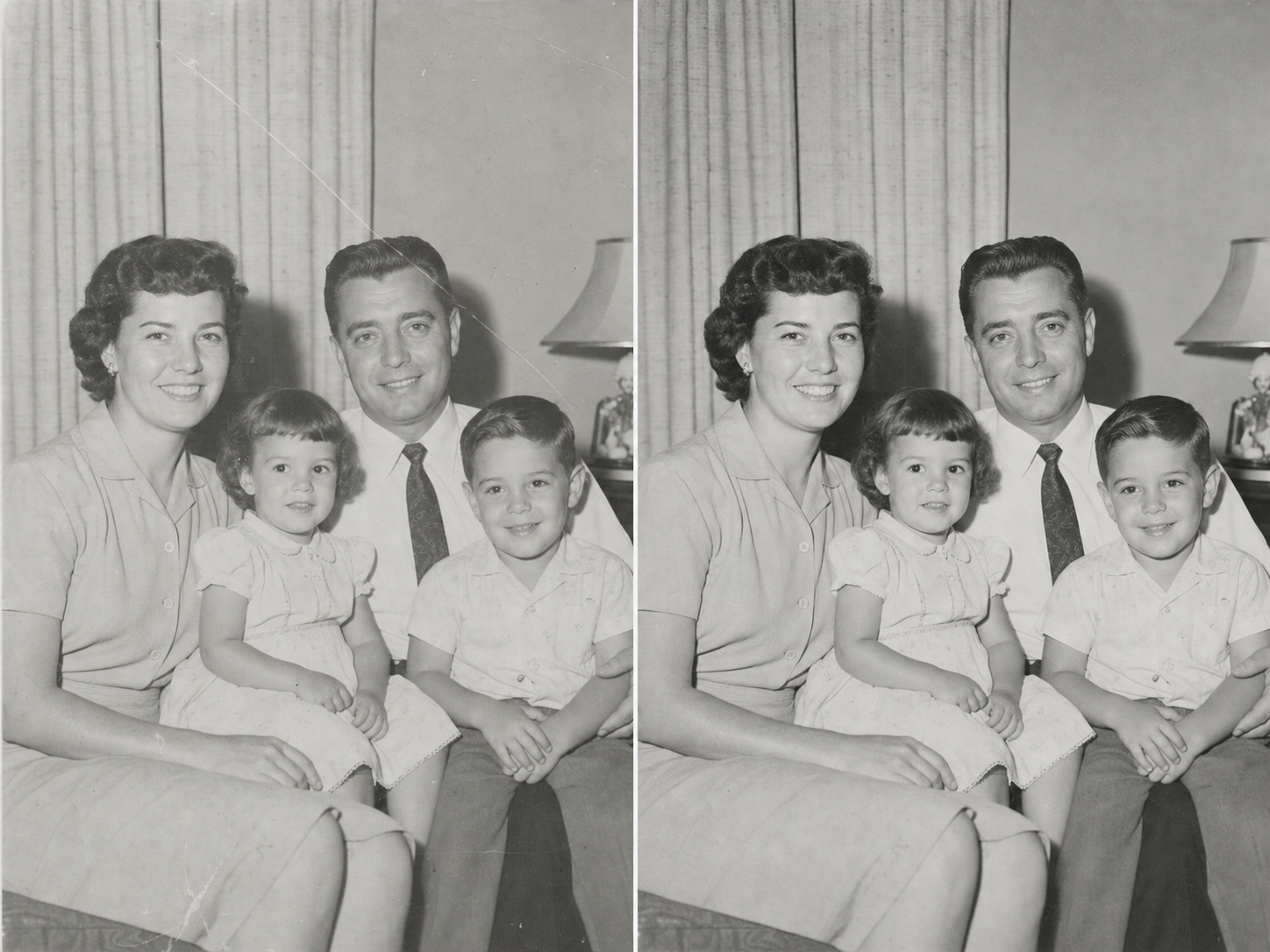
Faded family portrait
Balance weak contrast and fading while keeping the original expressions and era recognizable.
Repair visible damage, improve clarity, and bring faded family photos back into view while preserving their original character.
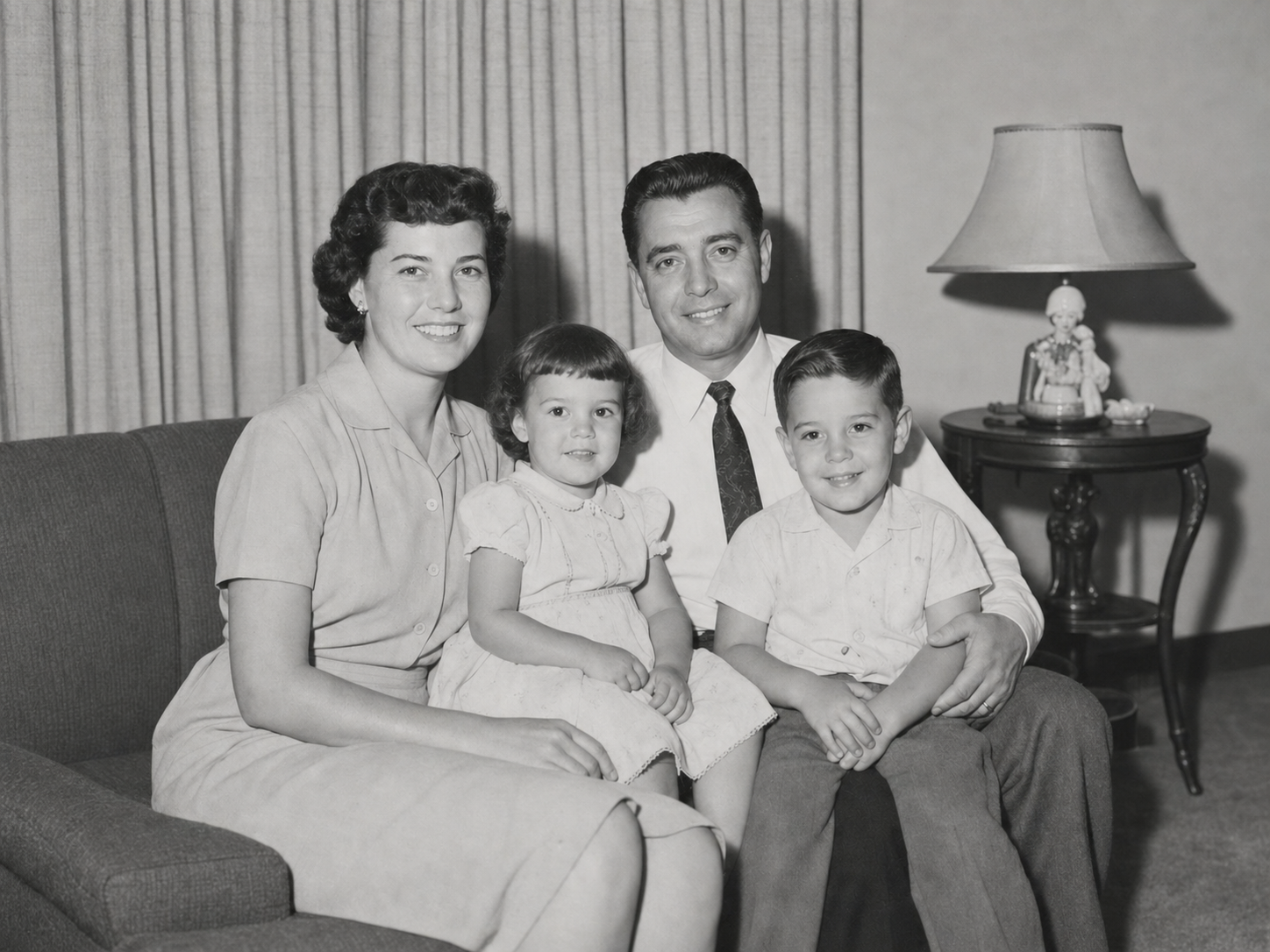
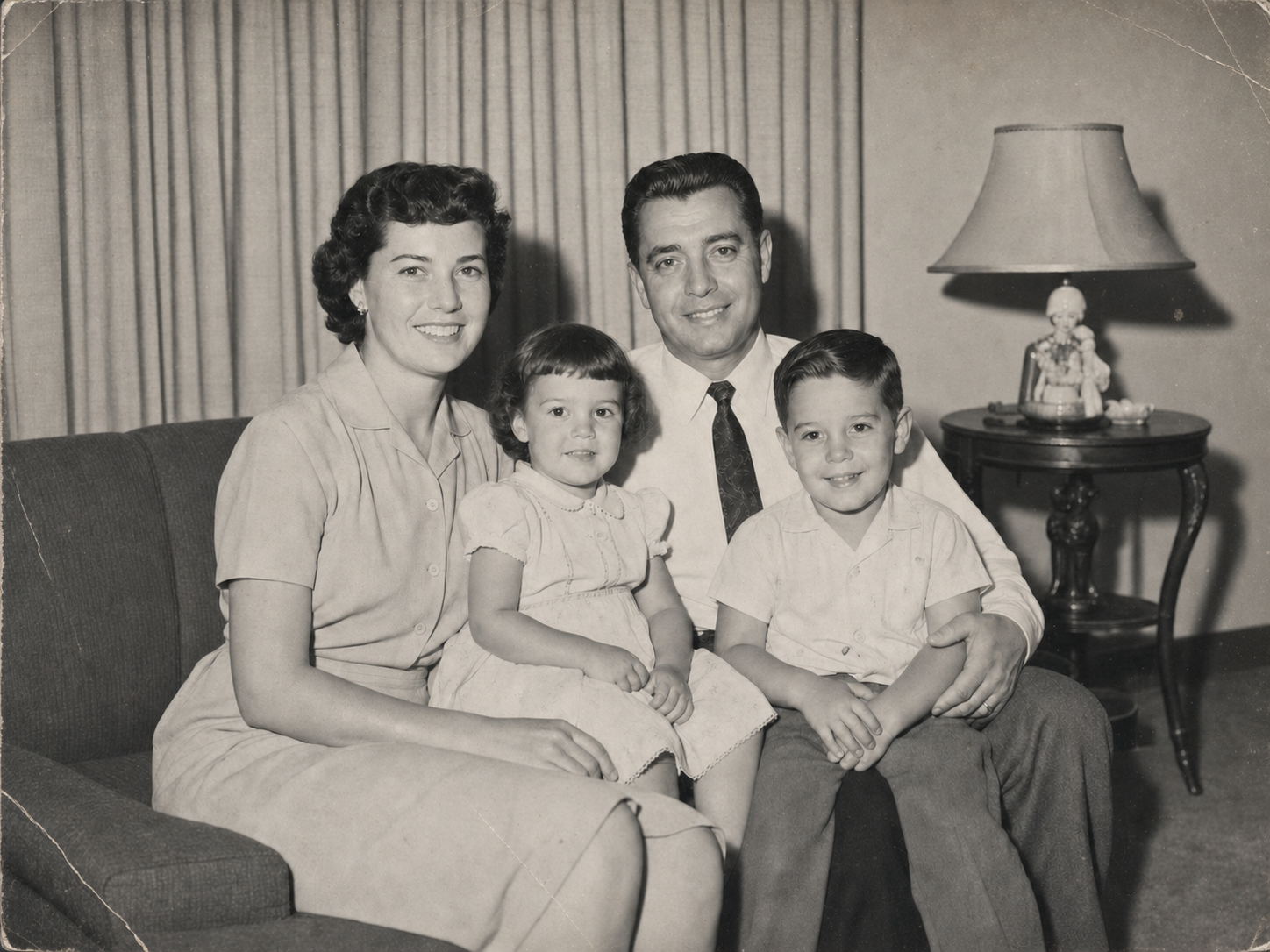 BeforeAfter
No complex editing software. Start with the clearest copy you have, choose how to restore it, and review the result.
Use a clear scan when possible. A well-lit phone photo can also work when it is straight and free of glare.
Use Auto for general cleanup, Face for portraits, Repair for visible damage, or Color for color restoration.
Drag the before-and-after control, inspect important details, then download the result as PNG, JPG, or WebP.
These examples show the same composition before and after restoration. Individual results depend on source quality and damage.
Balance weak contrast and fading while keeping the original expressions and era recognizable.
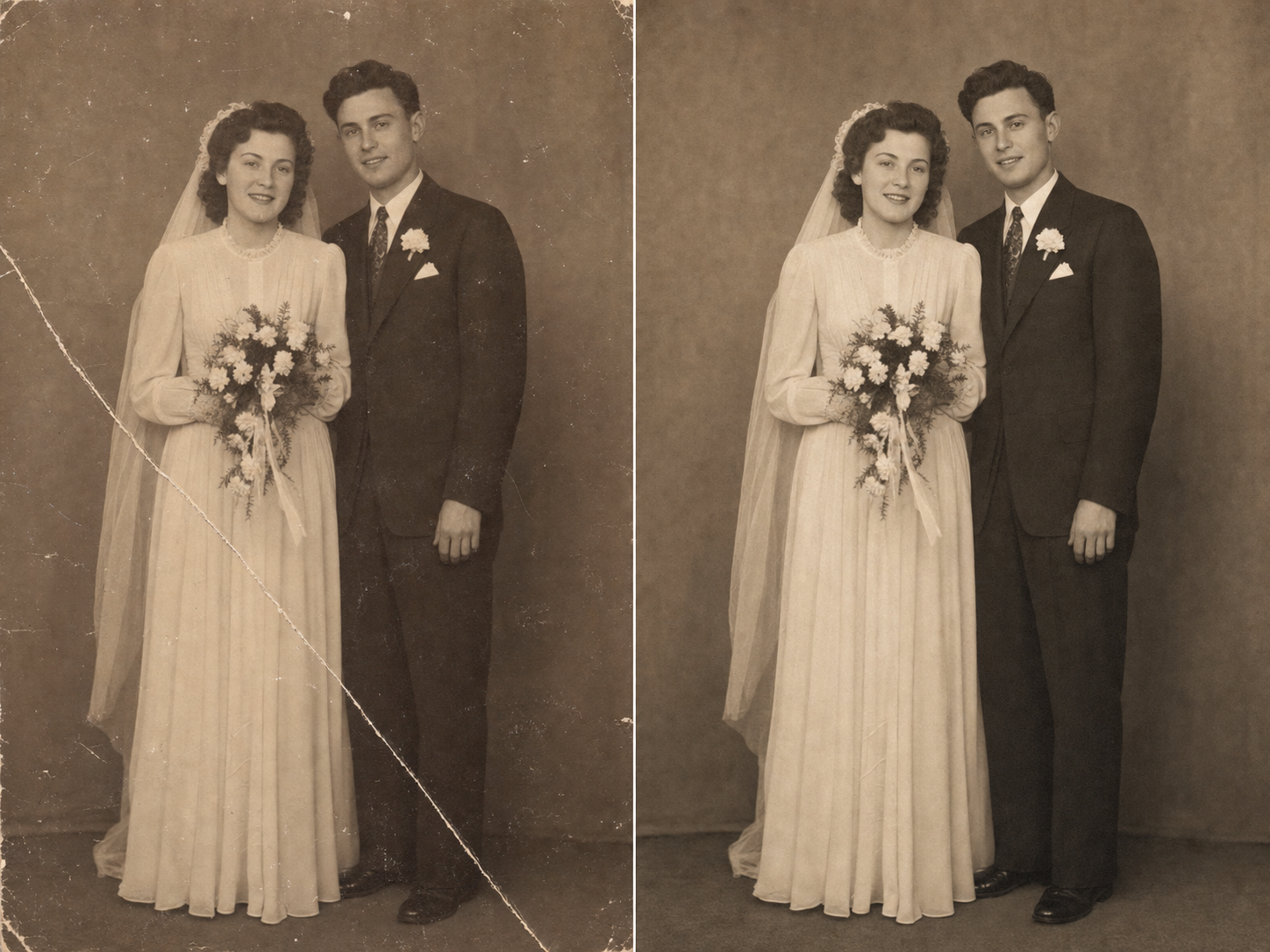
Reduce scratches, dust, and creases while preserving period clothing, faces, and natural print texture.
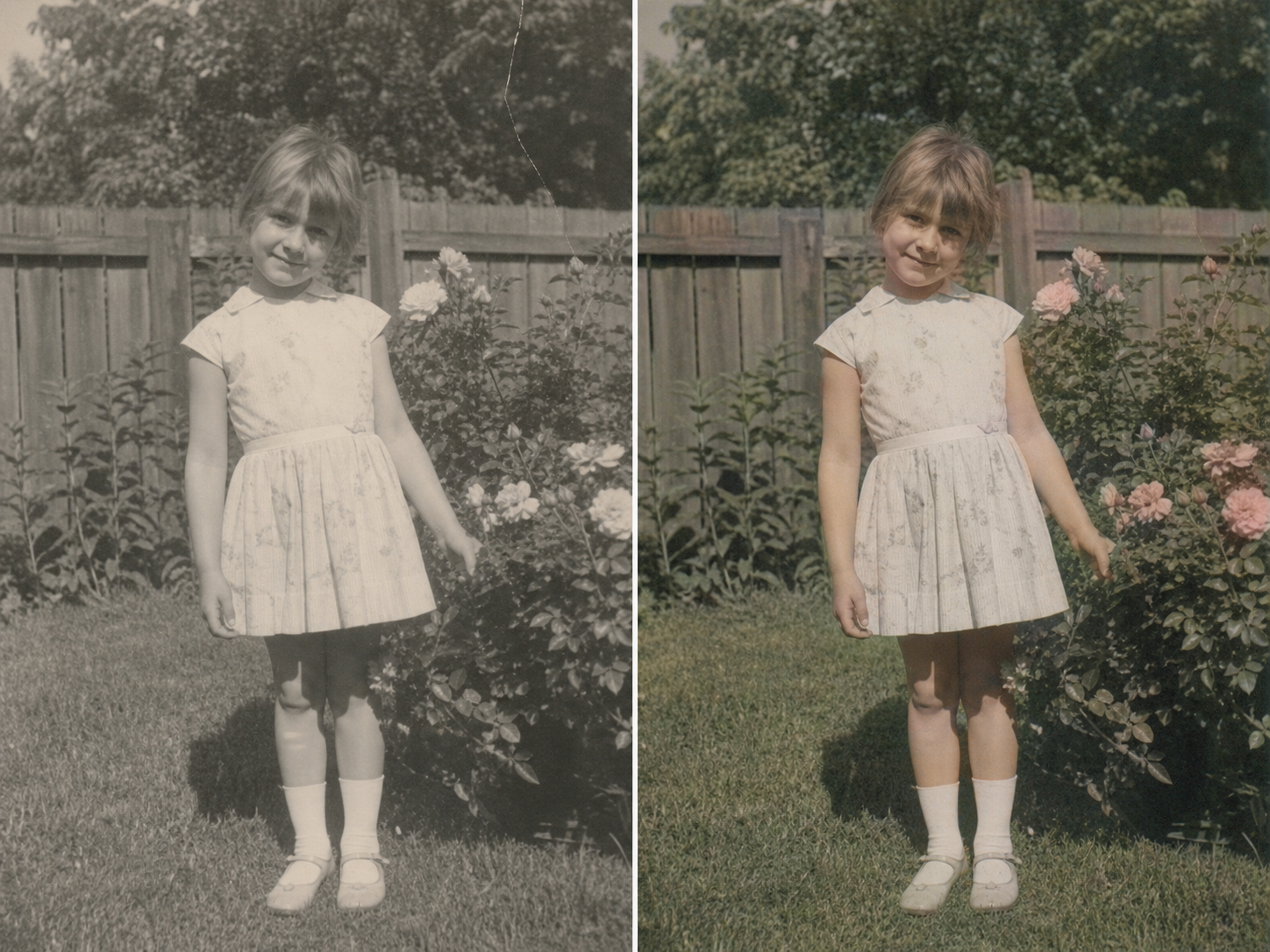
Restore the monochrome image as it is, or create a separate color interpretation when you choose.
Choose the mode that fits the most visible issue. Restoration can improve existing information, but it cannot guarantee recovery of details that are gone.
Rebalance visible contrast and faded color so existing details are easier to see.
Reduce scratches, dust, small creases, and common surface marks with Repair mode.
Improve mild blur, noise, and compression when the source still contains usable detail.
Prioritize portrait detail while keeping recognizable identity and natural texture in view.
Restore black-and-white photos without color, or request a separate color interpretation.
Use Retouva for personal prints and scans that need a clearer viewing copy. Always keep the original beside the restored version.
AI is useful for common restoration tasks. Complex or historically important damage may still need expert judgment.
Fast, accessible online, and useful for fading, mild blur, noise, scratches, dust, and low contrast.
A specialist can make detailed manual decisions across complex damage and uncertain historical areas.
A better source gives the restoration more real information to work with.
AI can improve visible information, but it cannot guarantee a historically accurate reconstruction of details that are missing, destroyed, or too blurred to identify.
Before printing or archiving, compare faces, text, uniforms, jewelry, architecture, and other meaningful details with the original. For severe or historically important damage, consult a qualified restoration professional.
Retouva processes your upload and selected options to create and deliver the restored result.
Practical answers about results, free use, supported files, colorization, privacy, and restoration limits.
Upload the clearest scan or phone capture you have, choose Auto, Face, Repair, or Color mode, and run the restoration. Compare the result with the original before downloading it.
AI can reduce common problems such as fading, noise, mild blur, scratches, dust, weak contrast, and some surface damage. Results depend on the information that remains in the source image.
Yes. Retouva provides one free restoration per day without login. The free result is 1K and has no watermark.
Repair mode can reduce visible scratches, dust, small creases, and surface marks. Severe damage or large missing areas may not be repaired perfectly.
Mild blur, noise, and compression can often be improved. Severe blur leaves less reliable source information, so the result may include estimated details.
Yes. Keep Add Color turned off to restore the image in black and white. You can turn it on when you want a separate AI-generated color interpretation.
Retouva is designed to prioritize recognizable identity and natural texture. When facial details are missing or severely damaged, AI may estimate them, so compare the result closely with the original.
Retouva supports JPG, JPEG, PNG, and WebP files up to 20 MB. A clear, high-resolution scan usually provides the best source.
Not with certainty. AI can improve many damaged photos, but it cannot guarantee accurate recovery of details that are completely missing or destroyed. A professional restorer may be more appropriate for severe or historically important damage.
No. Retouva does not use uploaded photos to train AI models.
Uploaded photos and generated results may be stored for up to 30 days. You can delete photos sooner, although cached or backup copies may take additional time to expire.
Upload a faded, blurry, scratched, or damaged photo, choose the right mode, and compare the result with the original.
No login required · 1K download · No watermark